How to Connect Wireless Speakers to a Projector
Table of Contents
- Check Your Projector's Audio Output Options
- How to Connect Wireless Speakers to a Projector via Bluetooth
- Using a Bluetooth Transmitter for Projectors Without Bluetooth
- Wired Connections That Beat Wireless Audio Quality
- Projector Audio Output Settings You Need to Adjust
- How to Fix Bluetooth Audio Lag and Sync Issues
- Conclusion
- Frequently Asked Questions
Last Updated: September 9, 2026
Connecting wireless speakers to projector setups is one of the most common pain points in home theater setup, yet it rarely requires technical expertise. The method you choose depends entirely on your projector's audio output options, which range from built-in Bluetooth to a simple 3.5mm headphone jack. This guide from JoeMo Promo walks through every connection path, from direct pairing to using a Bluetooth transmitter, so you can finally cut the speaker wire without sacrificing sound quality.

Most modern projectors include some form of wireless audio support, but the implementation varies wildly between models. Before buying any adapter or new speaker system, you need to identify exactly what outputs your projector offers. The good news is that virtually every projector can connect to wireless speakers using one of the methods covered below, regardless of its age or price point.
Check Your Projector's Audio Output Options
The first step is locating your projector's audio outputs, typically found on the rear or side panel near the video inputs. Look for a 3.5mm headphone jack, RCA output (red and white ports), optical audio port, or HDMI ARC support. The presence of a Bluetooth logo or "BT" marking indicates built-in wireless capability.
Projectors with HDMI ARC (Audio Return Channel) can send audio to a compatible soundbar or receiver over the same HDMI cable that carries video. This is the cleanest option for a permanent home theater installation because it supports high-quality formats without a separate audio cable. However, older projectors often lack ARC, leaving you with analog outputs that require additional hardware.
Brand-Specific Menu Navigation for Audio Settings
Once you've identified the physical ports, the next hurdle is finding the correct menu on your specific projector brand. Menu structures vary significantly, and a setting buried under "System" on one brand might be under "Sound" on another. Here is a practical lookup for common projector brands in the US market:
| Brand | Menu Path to Audio Output | Key Setting to Change |
|---|---|---|
| Epson |
Settings → Audio or AV Settings
|
Set Audio Output to External Speaker or Bluetooth (on models with built-in BT). |
| BenQ |
System Setup → Audio Settings
|
Choose Audio Output and select Line Out, Bluetooth, or HDMI ARC. |
| Optoma |
Settings → Audio
|
Look for Speaker or Audio Out to toggle between internal and external. |
| ViewSonic |
Settings → Audio
|
Select Audio Input or Audio Output to match your connection. |
| Anker Nebula |
Settings → Sound
|
Toggle Bluetooth Speaker or Audio Output to External. |
| XGIMI |
Settings → Sound
|
Select Output Device and choose your Bluetooth speaker or Line Out. |
This table is a starting point, not a definitive list. The exact wording varies by firmware version, but the pattern is consistent: you are looking for a submenu that controls where the audio signal is sent. If you have a brand not listed here, search your model's manual for "Audio Output" or "Speaker Setting" rather than "Bluetooth," as the wireless option is often nested within the general audio menu.
How to Connect Wireless Speakers to a Projector via Bluetooth
For projectors with built-in Bluetooth, the pairing process mirrors what you do with a phone or TV. Put your wireless speakers or soundbar into pairing mode, then open the projector's settings menu and navigate to the Bluetooth or audio output section. Select "Pair New Device" and wait for the projector to discover your speaker.
Once the speaker appears in the device list, select it to establish the connection. Most projectors remember paired devices, so subsequent sessions require only turning on the speaker and waiting for an automatic reconnect. If your projector has a dedicated Bluetooth button on the remote, you can skip the menu navigation entirely.
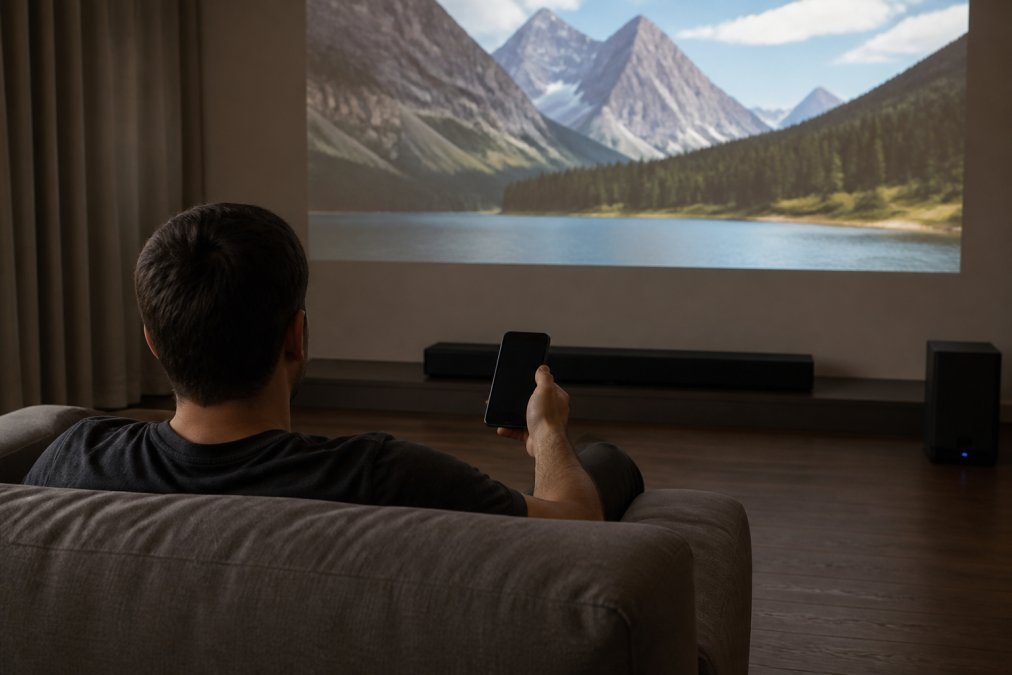
The main limitation of connecting wireless speakers to projector via direct Bluetooth pairing is audio latency, which can cause noticeable lip-sync issues during dialogue-heavy scenes. Many projectors use standard Bluetooth protocols that prioritize connection stability over low latency. For movies where timing matters, you may need to adjust the audio delay settings covered later in this guide.
Using a Bluetooth Transmitter for Projectors Without Bluetooth
Projectors lacking built-in Bluetooth still connect to wireless speakers through an external Bluetooth transmitter. This small adapter plugs into your projector's 3.5mm headphone jack or RCA output and broadcasts audio wirelessly to your speakers. It's a plug-and-play solution that works with virtually any projector, regardless of age.
When selecting a Bluetooth transmitter, prioritize models that support low latency codecs like aptX Low Latency or aptX Adaptive. These codecs reduce the delay between the audio signal and what you hear, which is critical for keeping dialogue synchronized with the action on screen. Standard Bluetooth transmitters without low latency support often introduce enough lag to make movies unwatchable.
For projectors with optical audio output, an optical-to-Bluetooth transmitter preserves the highest possible signal quality. These transmitters convert the digital optical signal to wireless audio without the analog conversion loss that occurs with headphone jack adapters. The result is cleaner sound with less background hiss, particularly noticeable during quiet scenes in a home theater setting.
Wired Connections That Beat Wireless Audio Quality
Wireless convenience comes with trade-offs, and for a dedicated home theater room, a wired connection often delivers superior audio fidelity. An optical cable or HDMI ARC connection transmits uncompressed digital audio that preserves every detail of the original soundtrack. Wireless protocols compress audio data, which can flatten dynamic range and reduce clarity in complex soundscapes.
For projectors with only a 3.5mm headphone jack, a simple auxiliary cable to a powered speaker or soundbar provides reliable, zero-latency audio. This is the most budget-friendly option and eliminates all connectivity issues, signal interference, and pairing failures. The cable run may be unsightly, but cable management channels can hide it along baseboards or behind furniture.
Connecting to a Multi-Speaker Home Theater System
Most guides stop at a single soundbar, but a true home theater setup involves multiple speakers. The key distinction is that a projector rarely connects directly to individual satellite speakers. Instead, it sends audio to an AV receiver, which then powers and routes the signal to the left, center, right, surround, and subwoofer channels.
Here is the standard connection path for a 5.1 system:
-
Projector to Receiver: Connect the projector's
HDMI ARCorOpticaloutput to the corresponding input on your AV receiver. HDMI ARC is preferred because it supports Dolby Digital Plus and can carry control signals, allowing you to turn the system on and off with a single remote. If your projector only has a 3.5mm jack, you will need a 3.5mm-to-RCA cable to connect to the receiver'sAUXinput, but this will only deliver stereo sound, not true surround. - Receiver to Speakers: The receiver then connects to each passive speaker via standard speaker wire. This is where the physical layout matters. Dolby's guide to home theater speaker placement explains how proper positioning affects surround sound performance, which matters more than the connection type when building an immersive system.
The Wired Limitation: The Receiver's Role
A common misconception is that you can connect wireless speakers directly to a projector. Most consumer wireless speakers (like a Sonos One or a Bluetooth soundbar) are designed to receive a single stereo signal. They are not designed to decode the discrete channels of a 5.1 mix. To get true surround sound, the receiver must decode the audio and send the appropriate channels to each speaker. This is why a projector's HDMI ARC port is so valuable, it carries the full surround signal to the receiver, which then handles the distribution.
For a permanent installation, running a single HDMI or optical cable from the projector to the receiver is cleaner and more reliable than trying to maintain multiple wireless links. Once the physical connection is made, the system behaves like a traditional wired theater, offering the lowest latency and highest fidelity possible.

Projector Audio Output Settings You Need to Adjust
After connecting your speakers, the projector's audio settings often need adjustment before sound plays through the correct output. Navigate to the audio settings menu and verify that the output source matches your connection method. Projectors with multiple outputs may default to the internal speaker, silently ignoring your new external audio device.
Common settings to check include audio output mode, which toggles between internal speaker, external speakers, or both simultaneously. Some projectors also have an "audio delay" or "lip sync" adjustment that compensates for wireless latency. Bluetooth SIG's overview of wireless audio standards explains how different wireless protocols handle timing, which helps you understand which delay setting to apply.
The audio output device selection is another setting that trips up users. Projectors with both Bluetooth and wired outputs may require you to explicitly select Bluetooth as the active output. If your speakers pair but produce no sound, this setting is almost always the culprit.
How to Fix Bluetooth Audio Lag and Sync Issues
Bluetooth audio lag occurs because the wireless protocol adds processing delay between the video signal and the audio playback. This delay typically ranges from 100 to 300 milliseconds, enough to make dialogue appear visibly out of sync with lip movements. The fix depends on whether your projector or your speaker system offers delay compensation.
Most projectors include an audio delay or lip-sync adjustment in their settings menu, allowing you to shift the audio timing forward or backward. Start by playing a scene with clear dialogue, then adjust the delay in small increments until the sound matches the on-screen action. Some soundbars and AV receivers offer similar delay settings, so check both devices if the projector lacks this option.
Signal interference from WiFi networks, microwave ovens, and other wireless devices can also cause intermittent audio dropouts. Moving the Bluetooth transmitter and speakers closer together, or repositioning them away from metal objects, often resolves connection stability issues. FCC's consumer guide on wireless device interference offers practical steps for identifying and eliminating sources of wireless interference in your home.
Conclusion
Connecting wireless speakers to a projector comes down to matching your hardware's capabilities with the right connection method. Built-in Bluetooth offers the simplest path, while a low latency transmitter bridges the gap for older projectors. For permanent installations where audio quality matters most, wired connections through HDMI ARC or optical cable remain the gold standard.
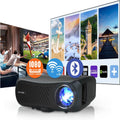
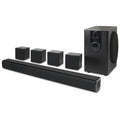
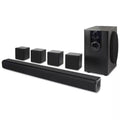
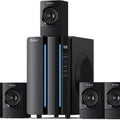
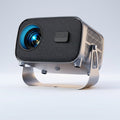
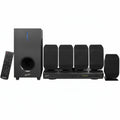
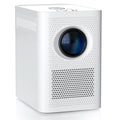
At JoeMo Promo, we stock projectors and surround sound systems designed to make wireless setup genuinely effortless. The Nova 300 Smart Home Theater Projector includes built-in Bluetooth and auto-focus, while the iLive 5.1 Surround Sound System pairs in seconds for a clutter-free cinematic experience. Shop the collection and turn any room into a private theater with 300-inch projection and immersive audio.
Frequently Asked Questions
Why won't my Bluetooth speaker pair with my projector?
The most common reason is that the projector's Bluetooth is set to transmit audio to a speaker, but the speaker is already connected to another device. Put the speaker in pairing mode and check the projector's Bluetooth settings to ensure it's searching for new devices. Some projectors only support Bluetooth for connecting remotes or keyboards, not audio output. Check your projector's manual to confirm it supports the A2DP profile for wireless audio.
Can I connect wireless speakers to a projector that lacks Bluetooth?
Yes. Use a Bluetooth transmitter plugged into the projector's 3.5mm headphone jack or RCA output. Plug the transmitter into the projector, put it in pairing mode, then put your wireless speaker in pairing mode. The transmitter sends the audio signal wirelessly to the speaker. Look for a transmitter that supports low latency codecs like aptX Low Latency to minimize audio lag.
How do I fix audio lag when using wireless speakers with a projector?
Audio lag, or lip-sync issues, happens because Bluetooth adds a delay to the audio signal. First, check if your projector has an audio sync or lip-sync setting in its menu to delay the video slightly. Second, use a Bluetooth transmitter and speaker that support low latency codecs like aptX Low Latency. Third, keep the speaker within 15 feet of the projector to avoid signal interference that can worsen the delay.
How do I get sound from my projector to external wireless speakers?
Start by checking if your projector has built-in Bluetooth. If it does, put your wireless speaker in pairing mode, then go to the projector's Bluetooth settings and select the speaker from the device list. If your projector doesn't have Bluetooth, plug a Bluetooth transmitter into its 3.5mm auxiliary port or RCA output, then pair the speaker to the transmitter. You may need to change the projector's audio output setting to 'External Speaker' or 'Audio Out' in its menu.