How to Fix Bluetooth Audio Lag: 7 Real Fixes
Table of Contents
- What Causes Bluetooth Audio Lag
- Best Low Latency Bluetooth Codecs for Home Theater
- Step-by-Step: How to Fix Bluetooth Audio Lag on Any Device
- How to Sync Audio and Video on a Projector
- Using a Bluetooth Transmitter for Home Theater
- Common Mistakes That Make Bluetooth Audio Lag Worse
- Conclusion
Last Updated: August 21, 2026
Bluetooth audio lag is one of the most frustrating problems in any home theater setup, and the fix is rarely as simple as "restart your device." Most bluetooth audio lag has a fixable root cause. Below, we'll walk through exactly what's happening, which codec you should be using, and the specific steps to eliminate the delay for good.
What Causes Bluetooth Audio Lag
Bluetooth audio lag is the audible delay between a video signal and its corresponding audio output, commonly called lip-sync delay. It happens because wireless audio transmission is not instantaneous. Every step in the chain adds time: encoding the audio, transmitting it over the 2.4GHz band, decoding it on the receiving device, and processing it through the speaker's internal hardware. When those delays stack up past roughly 40 milliseconds, the human ear starts to notice.
Transmission Delay vs. Audio Processing Delay
Transmission delay is the time it takes for audio data to travel from your source device to the Bluetooth speaker or receiver. A lower-quality codec like SBC can introduce 200-300 milliseconds of latency. A codec like aptX Low Latency is specifically engineered to keep transmission delay under 40 milliseconds.
Audio processing delay happens inside the speaker or soundbar itself. Digital signal processing, equalization, and virtual surround sound algorithms all add time after the audio arrives. If you switch codecs and the lag improves but doesn't disappear, audio processing delay is the remaining culprit. You'll need to address it through your projector or TV's A/V sync offset setting.

Best Low Latency Bluetooth Codecs for Home Theater
Choosing the right Bluetooth codec is the single highest-impact decision you can make for audio synchronization. The codec determines how audio is compressed, transmitted, and decoded, and different codecs have dramatically different latency profiles.
SBC, AAC, aptX, and LDAC Compared
| Codec | Typical Latency | Audio Quality | Device Support |
|---|---|---|---|
| SBC | 200-300 ms | Adequate | Universal |
| AAC | 100-200 ms | Good | Apple-optimized |
| aptX | 70-150 ms | Good | Android, Windows |
| aptX Low Latency | ~40 ms | Good | Select devices |
| LDAC | 50-200 ms | Excellent | Sony, Android |
SBC is the fallback codec every Bluetooth device supports, but its latency is high enough to cause visible lip-sync problems. AAC performs well on Apple devices. aptX cuts latency roughly in half compared to SBC. aptX Low Latency targets sub-40ms delay, which is imperceptible to most viewers and is the best low latency Bluetooth codec for home theater setups running Windows or Android source devices. LDAC prioritizes audio quality over latency and can perform worse than aptX in synchronization-critical scenarios.
How to Check and Switch Your Active Codec
On Android, go to Settings > Developer Options > Bluetooth Audio Codec. If Developer Options isn't visible, tap "Build Number" in About Phone seven times to unlock it. Select aptX or aptX Low Latency if your speaker supports it.
On Windows, codec selection is handled automatically by the Bluetooth driver. Updating your Bluetooth drivers often forces a renegotiation to a better codec.
On iOS and macOS, AAC is used by default with no manual override.
Step-by-Step: How to Fix Bluetooth Audio Lag on Any Device
The following steps are ordered from highest to lowest impact. Work through them in sequence rather than jumping around.
Step 1: Update Drivers and Firmware
Outdated Bluetooth drivers are a common cause of bluetooth audio lag. Driver updates often include codec compatibility fixes, handshake protocol improvements, and connection stability patches that directly reduce latency.
On Windows:
- Open Device Manager (Win + X > Device Manager)
- Expand "Bluetooth"
- Right-click your Bluetooth adapter and select "Update driver"
- Choose "Search automatically for drivers"
- Also visit your laptop or motherboard manufacturer's website for a dedicated Bluetooth driver package
For your Bluetooth speaker or soundbar:
- Download the manufacturer's companion app
- Check for a firmware update in the app's settings menu
- Install any available updates and allow the device to restart
- Re-pair the device after the firmware update completes
Firmware updates on the speaker side frequently address audio processing delay.
Step 2: Adjust Audio Output and Buffer Settings
Buffer size is the amount of audio data your device holds before sending it to the speaker. Larger buffers improve connection stability but increase latency. Smaller buffers reduce delay but can cause dropouts if the connection is unstable.
On Windows:
- Right-click the speaker icon in the taskbar > Open Sound settings
- Click your Bluetooth device > Device properties
- Under "Additional device properties," go to the Advanced tab
- Lower the Default Format sampling rate (try 24-bit, 48000 Hz as a starting point)
- Uncheck "Allow applications to take exclusive control of this device" if checked
On Android: In Developer Options, look for "Bluetooth Audio Sample Rate" and "Bluetooth Audio Bits Per Sample." Reducing the sample rate can lower processing overhead and reduce latency on some devices.
Step 3: Reduce Wireless Interference on the 2.4GHz Band
Bluetooth operates on the 2.4GHz band, which it shares with Wi-Fi routers, microwaves, baby monitors, and smart home devices. Heavy interference forces the Bluetooth protocol to retransmit data packets, which directly increases transmission delay.
Practical steps to reduce interference:
- Move your Wi-Fi router to the 5GHz band for devices that support it, freeing up 2.4GHz bandwidth
- Keep your Bluetooth speaker within 10 meters of the source device with clear line of sight
- Identify and relocate sources of 2.4GHz interference: cordless phones, smart plugs, and older Wi-Fi cameras are common offenders
- Use a Wi-Fi analyzer app to map which 2.4GHz channels are congested in your room and configure your router to use a less crowded channel
According to FCC guidance on radio frequency interference, the 2.4GHz band is one of the most congested unlicensed spectrum bands in residential environments.
Step 4: Reset Bluetooth Pairing and Network Settings
A corrupted pairing profile can cause persistent bluetooth audio lag that survives driver updates and codec changes. Resetting the pairing forces the devices to renegotiate the connection from scratch, often selecting a better codec in the process.
On Windows:
- Go to Settings > Bluetooth & devices
- Click the three dots next to your speaker > Remove device
- Restart your PC
- Re-pair the speaker from scratch
On Android:
- Settings > Connected devices > Previously connected devices
- Tap the gear icon next to your speaker > Forget
- Restart both the phone and the speaker
- Re-pair
Nuclear option: On Android, Settings > General Management > Reset > Reset Network Settings. This clears all saved Wi-Fi passwords and Bluetooth pairings simultaneously, so only use it if the targeted approach above doesn't resolve the issue.
How to Sync Audio and Video on a Projector
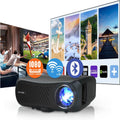
Projectors add an additional layer of video processing delay that doesn't exist with standard TVs. Image scaling, keystone correction, and upscaling algorithms all take time, which means the video signal arrives at the screen slightly later than it left the source.
Using Your Projector's Audio Delay or A/V Sync Setting
Most projectors include an audio delay or A/V sync offset setting in their sound menu. This setting intentionally delays the audio signal by a specified number of milliseconds to match the video processing time.
To calibrate it:
- Find a video with clear, sharp lip movements (news broadcasts work well)
- Open your projector's audio menu and locate "Audio Delay," "A/V Sync," or "Lip Sync"
- Start at 0ms and increase in 10ms increments
- Stop when audio and video appear synchronized
- Most projectors require between 40ms and 150ms of audio delay offset to compensate for processing time
As documented in Imaging Science Foundation's display calibration guidelines, video processing delay varies significantly between projector models and input modes.
Enabling Gaming Mode to Cut Input Lag
Gaming mode is the most underused fix for bluetooth audio lag in home theater setups. Most projectors and televisions include a gaming mode that bypasses the majority of image processing algorithms to minimize display latency. When gaming mode is active, the video processing delay drops from 80-150ms to under 20ms on many displays.
To enable it: go to your projector or TV's picture settings and look for "Game Mode," "Low Latency Mode," or "PC Mode." Once enabled, re-calibrate your audio delay offset, as the reduced video processing time will likely require a smaller offset than before.
Using a Bluetooth Transmitter for Home Theater
A Bluetooth transmitter is a small device that plugs into a TV or AV receiver's optical or 3.5mm audio output and broadcasts audio wirelessly to Bluetooth speakers. This is the right solution when your TV or projector doesn't have Bluetooth built in, or when its built-in Bluetooth uses only SBC codec.
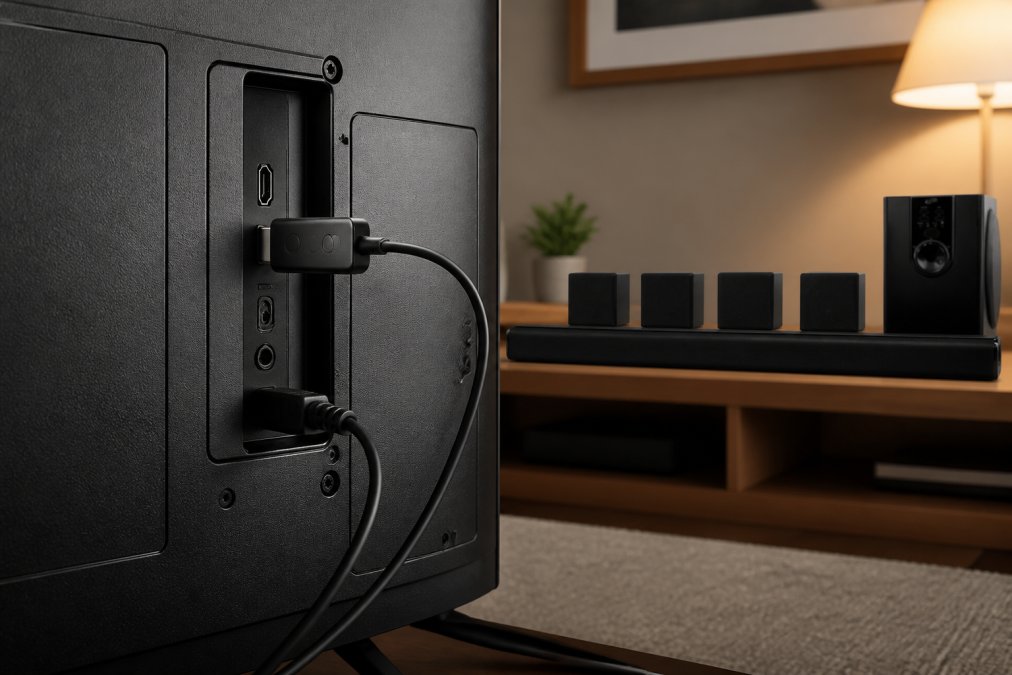
The key specification to look for in a Bluetooth transmitter for home theater use is aptX Low Latency support. A transmitter that supports aptX Low Latency on both the transmit and receive side keeps total transmission delay under 40ms, which is below the threshold of perceptible lip-sync delay for most viewers.
When evaluating a Bluetooth transmitter, check:
- Codec support: aptX Low Latency is the priority
- Output connection: Optical (TOSLINK) output preserves the full audio signal; 3.5mm analog output is simpler but may introduce quality loss
- Multi-point pairing: Some transmitters can connect to two speakers simultaneously, useful for stereo setups
- Range: Look for at least 30 meters of rated range to account for signal degradation through walls and furniture
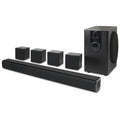
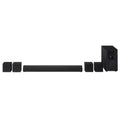
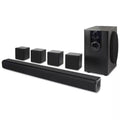
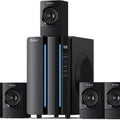
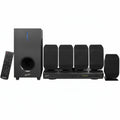
If you're building a full wireless home theater system, a Bluetooth transmitter pairs well with a capable surround sound system. The iLive 5.1 Surround Sound System from JoeMo Promo connects over Bluetooth directly from your TV or streaming device, delivering 5.1-channel audio without cable runs. For those who want real subwoofer impact at a lower price point, the JoeMo 800W Surround Sound System pairs in seconds and includes a full-function remote.

According to Bluetooth SIG's official specification documentation, aptX Low Latency was specifically developed to address the synchronization requirements of home theater and broadcast monitoring applications.
Common Mistakes That Make Bluetooth Audio Lag Worse
Most bluetooth audio lag guides focus on what to do. This section covers what to stop doing, because several common "fixes" actively make the problem worse.
Keeping too many Bluetooth devices paired simultaneously. Most Bluetooth adapters manage multiple paired profiles in the background, which consumes processing bandwidth. Unpair devices you don't actively use.
Using a Bluetooth speaker in power-saving mode. Many speakers reduce their Bluetooth radio power when battery is low, increasing packet retransmission and latency. Keep the speaker plugged in or fully charged during home theater use.
Placing the speaker behind or beside the TV. Signal obstruction forces the Bluetooth protocol to compensate with additional error correction, which adds delay. Keep the signal path clear.
Assuming the problem is the speaker. A common mistake is replacing a speaker when the real issue is the source device's codec configuration or driver version. Run through Steps 1-4 above before concluding the hardware is at fault.
Enabling virtual surround or heavy EQ processing. Audio processing inside the speaker adds delay on top of transmission delay. If your speaker has a "direct" or "pure" audio mode that bypasses processing, use it when synchronization matters.
Persistent bluetooth audio lag is genuinely solvable, but it requires working through the problem systematically rather than guessing at single fixes. JoeMo Promo's wireless home theater systems are designed with easy Bluetooth pairing and reliable connection stability, so you spend less time troubleshooting and more time watching. If you're ready to build a home theater setup that works the first time, explore the JoeMo Promo collection for handpicked surround sound systems with free shipping on most orders.
Frequently Asked Questions
Q: Why is there a delay between my video and Bluetooth audio?
A: Bluetooth audio lag happens because wireless audio goes through several processing steps before it reaches your ears: encoding at the source, transmission over the wireless protocol, and decoding at the speaker or headphone. Each step adds milliseconds of transmission delay. The codec your devices use has the biggest impact, SBC can add 150-200ms of lag, while aptX Low Latency targets under 40ms. Projector video processing adds its own delay on top, which is why lip-sync issues are especially common in home theater setups.
Q: Does Bluetooth version affect audio latency?
A: Bluetooth version alone does not determine latency. A device running Bluetooth 5.0 but using the SBC codec will still produce noticeable audio lag. The codec is the primary factor controlling how much delay you experience. Newer Bluetooth versions improve connection stability and range, which can reduce dropouts and choppy audio, but they do not automatically cut down lip-sync delay. To genuinely fix bluetooth audio lag, focus on codec selection and your device's audio output settings first.
Q: What is the difference between Bluetooth latency and audio stuttering?
A: Bluetooth latency is a consistent, fixed delay between the video and audio, dialogue always arrives a fraction of a second late. Audio stuttering is an inconsistent problem where sound cuts in and out or skips. Stuttering usually points to signal obstruction, wireless interference on the 2.4GHz band, or a weak connection caused by distance. Latency points to codec or processing issues. They need different fixes: stuttering calls for interference reduction or a pairing reset, while latency calls for codec upgrades or A/V sync adjustments.
Q: Can I adjust audio sync settings on my TV or projector?
A: Most TVs and many projectors include an audio delay or A/V sync setting in their sound menu, usually adjustable in milliseconds. On a projector, look under Audio or Sound settings for 'Audio Delay' or 'Lip Sync.' Increase the delay value in small increments, around 20-30ms at a time, while playing content with clear dialogue until the audio lines up with on-screen movement. Some projectors also offer a dedicated Game Mode that cuts video processing time, which effectively reduces the gap between audio and picture.
This article was written using GrandRanker