How to Avoid Bluetooth Audio Lag: 7 Fixes That Work
Table of Contents
- What Causes Bluetooth Audio Lag
- How to Measure and Isolate Bluetooth Audio Delay
- Fix Bluetooth Audio Delay on Android
- Fix Bluetooth Audio Delay on Windows
- Bluetooth Audio Out of Sync With Video: Lip-Sync Fixes
- Understanding Low Latency Bluetooth Codec Options
- Use-Case-Specific Fixes: Calls, Music, Gaming, and Video
- When Troubleshooting Cannot Eliminate Latency
- Frequently Asked Questions
Last Updated: October 17, 2026
What Causes Bluetooth Audio Lag
Bluetooth audio lag is the delay between when audio is transmitted from your device and when you actually hear it through your wireless headphones or speakers. It ranges from barely noticeable to completely frustrating, especially during video calls, gaming, or watching movies. The root causes fall into two categories: connection issues and technical limitations.
Signal Interference and Connection Stability
Your Bluetooth connection operates on the 2.4 GHz frequency, shared with WiFi routers, microwaves, and cordless phones. Simultaneous transmission creates interference that disrupts your audio.
Walls, metal objects, and distance weaken the signal, forcing your Bluetooth connection to work harder and introducing lag.
Battery-saving modes make this worse: reduced transmission power means a weaker signal and more lag.
Connection stability also depends on how many devices are paired. Headphones connected to your phone, tablet, and laptop at once become unstable as they jump between devices.
Audio Codec Limitations
Audio codecs are compression formats that determine how audio data is packaged and transmitted. Different codecs introduce different amounts of delay.
Standard Bluetooth uses the SBC codec, which compresses audio heavily to fit Bluetooth's limited bandwidth, adding processing time on both ends.
Advanced codecs like aptX and LDAC reduce latency, but not all devices support them. If your headphones support aptX but your phone doesn't, the connection defaults to SBC and higher lag.
Gaming headsets and professional audio equipment often use low-latency codecs specifically designed to minimize delay. Consumer headphones rarely prioritize this.
How to Measure and Isolate Bluetooth Audio Delay
Before troubleshooting, confirm whether the lag is actually Bluetooth's fault.
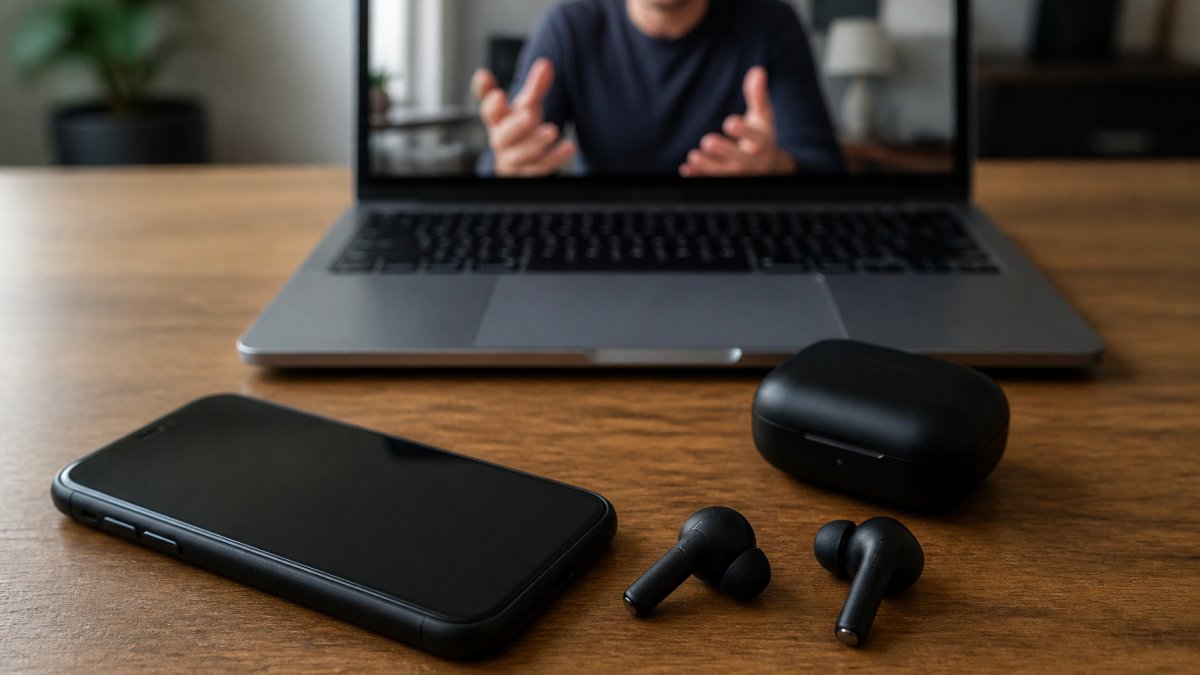
Start by testing with a wired connection.
Next, test with a different pair of Bluetooth headphones.
For video content, use a lip-sync test. Play a video where you can clearly see someone speaking.
Measure the delay in seconds: on a video call, have someone snap their fingers and count the gap between seeing and hearing it.
Document which activities trigger lag. Does it happen during calls but not music? During gaming but not video playback? Use-case-specific lag points to specific fixes.
Fix Bluetooth Audio Delay on Android
Android devices accumulate settings and background processes that degrade Bluetooth performance over time. These fixes address the most common causes.
Step 1: Disable Power-Saving and Battery Optimization
Power-saving modes are the fastest way to introduce Bluetooth lag, throttling your processor and reducing wireless transmission power.
Go to Settings > Battery > Battery Saver and toggle it off. If you're using an aggressive power-saving mode, switch to a standard mode or turn off battery optimization entirely.
Next, go to Settings > Apps > [Your Bluetooth App] > Battery > Battery Optimization and select "Don't optimize." Repeat for frequently used audio apps like your music streaming app or video player.
Step 2: Reconnect and Reset Bluetooth
A stale connection often causes lag; forgetting and re-pairing your headphones clears cached connection data.
Go to Settings > Bluetooth and find your headphones. Tap the gear icon or info button next to them and select "Forget." Turn off Bluetooth completely.
Wait 10 seconds, turn Bluetooth back on, and pair them again from scratch so your device negotiates a fresh connection with optimal settings. If lag persists, try toggling Bluetooth off and on without unpairing.
Step 3: Clear Bluetooth Cache
Android stores Bluetooth connection data in a cache. Corrupted cache files can cause lag.
Go to Settings > Apps > Show System Apps and find "Bluetooth." Tap Storage > Clear Cache. This removes temporary files without deleting your pairings.
If lag continues, select Clear Storage instead. This erases all Bluetooth pairings, so you'll need to re-pair your headphones, but it often fixes persistent lag. Restart your device afterward to reload Bluetooth settings fresh.
Fix Bluetooth Audio Delay on Windows
Windows manages Bluetooth differently than Android, and lag often stems from outdated drivers or power management settings.
Step 1: Update Bluetooth Drivers
Outdated Bluetooth drivers are a common cause of lag on Windows; manufacturers release updates to fix latency and improve compatibility.
Open Device Manager by pressing Windows Key + X and selecting it from the menu. Expand "Bluetooth" and right-click your Bluetooth adapter. Select "Update driver" and choose "Search automatically for updated driver software."
Windows will check for the latest driver; install any update and restart. If automatic updates find nothing, download the latest Bluetooth driver manually from your computer manufacturer's website, especially important for older laptops where Windows Update may lag behind.
Step 2: Disable Bluetooth Power Management
Windows often reduces Bluetooth power to save energy, introducing lag. Disabling this forces your adapter to maintain full power.
Open Device Manager, expand "Bluetooth," and right-click your adapter. Select Properties > Power Management. Uncheck "Allow the computer to turn off this device to save power."
Click OK and restart your computer. This keeps your Bluetooth adapter running at full strength at all times.
Step 3: Reconnect Your Wireless Headphones
After updating drivers and adjusting power settings, re-pair your headphones for a fresh connection.
Go to Settings > Devices > Bluetooth & other devices. Find your headphones and click "Remove device." Turn off Bluetooth, wait 10 seconds, then turn it back on.
Search for your headphones and pair them again; Windows applies the new driver and power settings, often eliminating lag immediately.
Bluetooth Audio Out of Sync With Video: Lip-Sync Fixes
When audio and video don't match, it's usually called lip-sync delay. This is especially noticeable during video calls, streaming movies, and gaming.
Adjust Audio Delay in Video Player Settings
Many video players let you manually adjust audio delay to compensate for Bluetooth lag, the quickest fix if your player supports it.
Open your video player and look for Settings > Audio or Playback Settings. Find an option labeled "Audio Delay," "Sync," or "Lip Sync." Most players let you adjust delay in milliseconds.
Start by shifting audio forward 100-200 milliseconds, play a video with visible speech, and adjust in smaller increments until sync is perfect.
Use Low Latency Bluetooth Codec for Better Synchronization
If your device and headphones both support a low-latency codec, switching can eliminate lip-sync problems entirely.
Check your headphones' manual or manufacturer website for supported codecs; common low-latency options include aptX Low Latency, LDAC, and AAC.
On Android, go to Settings > Developer Options (enable this first by tapping Build Number seven times in About Phone).
On Windows, right-click your Bluetooth headphones in Device Manager, select Properties, and check the "Advanced" tab for codec options. Not all Windows devices expose this setting, but some do.
TV and Streaming Device Lip-Sync Settings
Smart TVs and streaming devices like Roku and Fire TV often have built-in lip-sync adjustment tools.
On most TVs, go to Settings > Sound > Audio Sync or Lip Sync Delay, increase the value by 100-200 milliseconds, and test with a video until audio matches. Roku has Settings > Audio > Audio Delay; Fire TV has Settings > Display & Sounds > Audio Sync. If there's no dedicated setting, check whether your device supports a low-latency Bluetooth codec.
Understanding Low Latency Bluetooth Codec Options
The codec your device uses has the biggest impact on Bluetooth audio lag. Choosing the right codec can cut lag in half or more.
What Is Codec Latency and Why It Matters
Codec latency is the delay introduced by compressing and decompressing audio data; some compression methods are faster than others.
SBC, the standard Bluetooth codec, introduces 100-150 milliseconds of latency, noticeable during video calls and gaming. Advanced codecs reduce this to 30-50 milliseconds, making audio feel nearly real-time. The trade-off: low-latency codecs use more battery and processing power, which is why budget headphones stick with efficient SBC.
Comparing Codec Performance: aptX, LDAC, and SBC
| Codec | Latency | Best For | Battery Impact |
|---|---|---|---|
| SBC | 100-150ms | Budget headphones, basic use | Very low |
| aptX | 30-50ms | Gaming, video calls | Low |
| aptX Low Latency | 20-40ms | Competitive gaming | Low |
| LDAC | 60-90ms | High-quality audio, music | Moderate |
| AAC | 40-60ms | Apple devices, general use | Low |
SBC is supported by every Bluetooth device, so it's always a fallback, but switching to aptX reduces lag by two-thirds. LDAC prioritizes audio quality over latency, making it better for music than gaming or calls, while aptX Low Latency is designed for gaming and offers the lowest lag on consumer Bluetooth devices. Check your headphones' specs: prioritize low-latency options for gaming and calls, and LDAC for music.
Use-Case-Specific Fixes: Calls, Music, Gaming, and Video
Different activities have different latency tolerances. What's acceptable for music might be unacceptable for gaming.
Gaming Audio Delay Solutions
Gaming is the most latency-sensitive activity; even 50 milliseconds can throw off your aim or reaction time.
Switch to a low-latency codec immediately, aptX Low Latency cuts latency to 20-40 milliseconds. Use a gaming headset if possible; brands like SteelSeries and HyperX offer Bluetooth gaming headsets with proprietary low-latency technology. Move closer to your gaming device and remove obstacles like walls or metal objects. If gaming on a WiFi-connected PC, switch to wired ethernet to eliminate 2.4 GHz interference.
Video Playback and Streaming Synchronization
Video lag is noticeable but less critical than gaming lag; anything under 100 milliseconds is generally acceptable. Use the video player's built-in audio delay adjustment if available, most streaming apps like Netflix and YouTube bury this in advanced settings. Test a low-latency codec if your device supports it; aptX can help. Close bandwidth-heavy background apps that might disrupt your Bluetooth connection.
Phone Calls and Voice Chat
Phone calls are extremely lag-sensitive; delays over 150 milliseconds make conversation feel unnatural (ITU-T Recommendation database). Disable power-saving mode completely during calls, the single biggest cause of call lag on mobile devices. Switch to a low-latency codec if available; many phones default to SBC for calls, but aptX can reduce lag significantly. Reduce background noise, since Bluetooth connections degrade in loud environments.
When Troubleshooting Cannot Eliminate Latency
Some Bluetooth audio lag is unavoidable due to hardware limitations; knowing when to accept it saves time and frustration.
For home theater setups where clutter-free wireless audio is important, consider upgrading to headphones or speakers with built-in low-latency technology.
If lag only happens with specific apps or activities, the issue may be app-level: some apps have their own audio processing that introduces delay.
Bluetooth audio lag doesn't have to ruin your experience. Most lag issues stem from power-saving settings, outdated drivers, or codec mismatches, all fixable with the steps above.
Frequently Asked Questions
How much latency does Bluetooth audio typically have?
Standard Bluetooth audio typically has 100-300ms of latency, depending on the device and codec. Low-latency codecs like aptX can reduce this to 32-40ms. For video playback and gaming, anything above 75ms becomes noticeable; for music listening alone, most people don't perceive delay. Measuring your specific setup with a video recording or latency test app helps you know whether the delay you're experiencing is within normal range or fixable.
Why is Bluetooth audio out of sync with video on my device?
Bluetooth audio delay and video processing delay don't always match, causing lip-sync issues. Your device's video decoder may process frames faster or slower than your Bluetooth audio transmits sound. Most streaming apps and TV settings include audio delay adjustments measured in milliseconds. Start by checking your video player's audio sync settings, then adjust by 50-100ms increments until speech matches lip movement. If your TV has a lip-sync or audio delay setting, enable it first.
Can a low latency Bluetooth codec really reduce audio lag?
Yes, but only if both your device and headphones support it. aptX Low Latency and LDAC codecs cut latency roughly in half compared to standard SBC codec. However, codec support varies by manufacturer and device model. Check your headphone and phone specifications before assuming low-latency codec support. Even with a low-latency codec, interference, distance, and power-saving settings still affect performance, so codec choice is one piece of the solution, not a complete fix.
How do I fix Bluetooth audio delay on Android?
Start by disabling power-saving modes and battery optimization for Bluetooth in Settings > Battery. Forget the device under Bluetooth settings, power off both devices for 10 seconds, then re-pair them. If delay persists, clear Bluetooth cache by going to Settings > Apps > Show System Apps > Bluetooth, then tap Storage > Clear Cache. For video sync issues, open your video player settings and manually adjust audio delay. If none of these work, try a low-latency codec-compatible headset or switch to a wired connection to isolate whether the problem is Bluetooth-specific.