Automatic Keystone Correction Benefits Explained
Table of Contents
- What Is Automatic Keystone Correction?
- How Automatic Keystone Correction Works
- Does Keystone Correction Reduce Image Quality?
- Projector Keystone Correction vs. Lens Shift: Which Is Better?
- Projector Placement Tips for Home Theater Setup
- When to Use Keystone Correction and When to Avoid It
- Getting the Most From Your Projector's Keystone Features
Last Updated: August 28, 2026
What Is Automatic Keystone Correction?
Automatic keystone correction is a projector feature that digitally adjusts image geometry to compensate for off-axis projection angles, creating a rectangular display even when the projector isn't pointed directly at the screen. When you mount a projector at an angle, the image naturally forms a trapezoid shape. Keystone correction detects this distortion and applies digital scaling to restore the image to a proper rectangle.
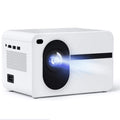
At JoeMo Promo, we've engineered our projectors with this feature because real-world installation rarely allows perfect perpendicular mounting. The Nova 300 Smart Home Theater Projector includes automatic keystone correction that activates within seconds of power-on, eliminating manual calibration. The term "keystone" comes from architecture, a wedge-shaped stone that locks an arch in place. In projection, the algorithm performs a similar function by adjusting pixel interpolation to counteract trapezoidal distortion. Both vertical keystone (correcting top-to-bottom taper) and horizontal keystone (correcting left-to-right skew) work simultaneously in modern systems.

For homeowners setting up a 300-inch display where ceiling height or wall placement doesn't allow ideal positioning, this feature transforms installation from a technical puzzle into a straightforward process.
How Automatic Keystone Correction Works
Automatic keystone correction involves three interconnected systems: sensor detection, image processing algorithms, and real-time pixel mapping. When you power on a projector with this capability, an infrared or gyroscope sensor measures the projector's physical orientation relative to the wall or ceiling. This data feeds into the image processing engine, which calculates the degree of distortion present.
The correction algorithm applies non-uniform digital scaling, meaning different parts of the image scale at different rates to compress the wider end of the trapezoid and expand the narrower end. If the top of your image projects 20% wider than the bottom, the algorithm shrinks the top by 20% while enlarging the bottom proportionally. This happens in real-time, frame-by-frame, without noticeable latency.
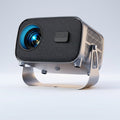
The Wanderlight Portable Smart Projector uses gyroscope-based correction, making it ideal for setups where you might reposition the projector frequently. The image processing happens on dedicated hardware within the projector, separate from the main video processing pipeline, ensuring keystone correction doesn't compete with brightness, contrast, or color processing.

The correction is purely digital, the projector's lens doesn't physically shift. Instead, the image data itself is mathematically transformed before reaching the projection engine. Understanding this distinction matters because it reveals the trade-offs involved.
Does Keystone Correction Reduce Image Quality?
Yes, automatic keystone correction reduces image quality, but the extent depends on how aggressively the correction is applied. When the algorithm stretches or compresses pixels to fix geometry, it loses some sharpness and introduces image artifacts. This is the fundamental trade-off: perfect geometry versus pristine image detail.
Degradation occurs because digital scaling requires pixel interpolation, the system must estimate pixel values for the newly created geometry. When you compress the top of an image by 20%, the algorithm must discard or blend pixels, reducing effective resolution in that area. Vertical keystone correction causes more noticeable degradation than horizontal correction because it affects the entire height of the image. At extreme angles (30+ degrees of vertical tilt), image degradation becomes visually apparent.
The severity also depends on native resolution. A 1080p projector applying heavy keystone correction will show more visible pixelation than a 4K projector applying the same correction. The CAIWEI Halo 300 Ultra-Bright Projector's native 1080p with 4K support has sufficient pixel information to handle moderate correction without obvious artifacts, but aggressive correction still impacts sharpness.
Professional installers recommend using keystone correction as a fallback, not the primary solution. Position the projector as close to perpendicular as your room layout allows, then use keystone only to fine-tune the final 5-10 degrees of misalignment. This preserves image quality while providing convenience.
Modern projectors employ techniques to minimize quality loss. Some use higher internal processing resolutions than their native output, allowing them to correct geometry and downscale without visible loss. Others prioritize the center of the image (where viewers focus) with lighter correction and apply heavier correction to edges (where the eye is less sensitive).
Projector Keystone Correction vs. Lens Shift: Which Is Better?
Lens shift is a mechanical solution to the same problem that keystone correction solves digitally. Instead of adjusting image geometry through software, lens shift physically moves optical elements inside the projector, changing where the light beam projects without requiring the entire projector body to tilt.
Lens shift preserves image quality because no pixel interpolation occurs. The optical path itself is adjusted, so the projector delivers its full native resolution without digital scaling artifacts. However, lens shift carries two significant constraints: cost and range.
Lens shift mechanisms add to a projector's price compared to keystone-only models and are mechanically complex, introducing potential failure points. The Nova 300 Smart Home Theater Projector uses automatic keystone correction instead, keeping the price accessible while delivering excellent image quality for typical home theater angles.
Lens shift typically corrects 10-20% of image height or width, handling modest mounting angles but not extreme ones. Keystone correction can handle much larger angles (sometimes 30+ degrees) because it's purely digital with no mechanical limits.
For most home theater applications, automatic keystone correction is the practical choice. It's more affordable, requires no maintenance, and handles the range of angles typical room layouts demand. Some premium projectors combine both technologies, using lens shift for primary correction and light keystone as fine-tuning, delivering near-optical-quality results at premium prices.
Projector Placement Tips for Home Theater Setup
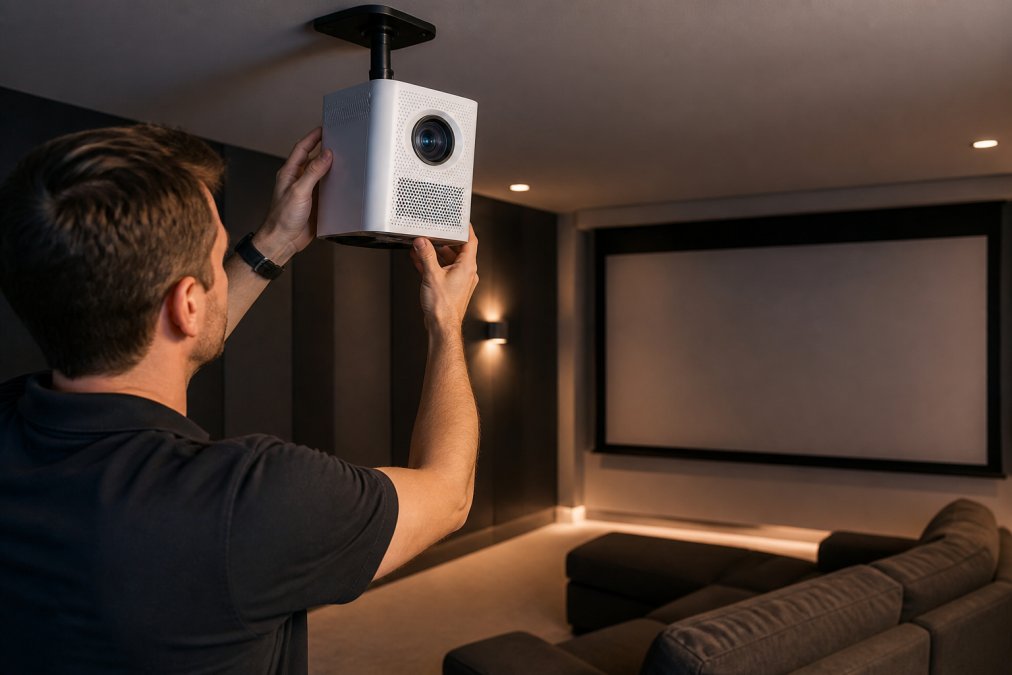
Thoughtful placement dramatically reduces your reliance on keystone correction, preserving image quality. The ideal setup positions the projector on the center line of your screen, at a height where the optical axis points directly at the middle of the display.
Start by measuring your throw distance, the distance from the projector lens to the screen. Most projectors have a throw ratio (typically 1.2:1 to 1.5:1) that determines screen size at a given distance. A 1.2:1 throw ratio means a 12-foot throw distance produces a 10-foot-wide image. Calculate this first, then position your seating and screen accordingly.
Consider ceiling height relative to seating. If your couch is at standard height (around 40 inches) and your ceiling is 8 feet, mounting the projector 6-8 feet high creates a downward angle of 15-20 degrees, manageable with moderate keystone correction. Position the projector on the center line running from the screen through the seating area. A rotating stand allows you to adjust this angle without physically moving the entire setup.
Wall surface preparation is critical. Keystone correction works best on smooth, flat screens. Ensure painted walls are uniform and truly flat. A proper projection screen (white matte or gray) provides the most consistent surface and minimizes visual impact of any remaining distortion.
Ensure at least 6 inches of clearance around the projector for airflow. Projectors generate heat and need ventilation. Mounting in confined spaces can cause thermal throttling, degrading brightness and image stability.
When to Use Keystone Correction and When to Avoid It
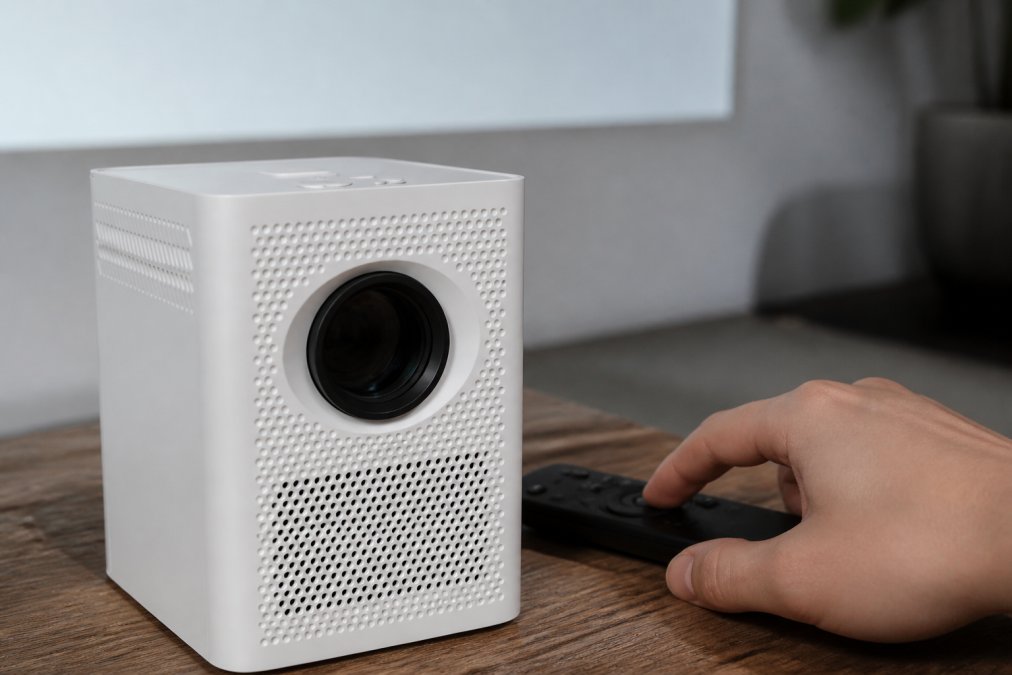
Use keystone correction when your room layout makes perpendicular projector placement impossible. A 10-15 degree vertical tilt with moderate keystone correction is a reasonable compromise between geometry and image quality.
Avoid keystone correction when you can achieve proper placement with minor adjustments. If repositioning the projector by a few feet or adjusting its height by a foot would eliminate the need for correction, invest that effort. The image quality improvement justifies the setup time.
Use keystone for fine-tuning, not primary correction. If your projector needs only 3-5 degrees of correction to perfectly align the image, keystone is ideal. If your setup requires 25+ degrees of correction, reconsider the projector position before relying on heavy keystone adjustment.
Avoid keystone for portable setups where you're repositioning the projector frequently. For temporary installations or backyard movie nights with the Karnstar Outdoor Cinema Projector, automatic keystone handles variability, but it's not ideal for constantly changing placement.

Use automatic keystone correction when you value convenience over absolute image perfection. For family rooms where casual viewing is the priority, automatic correction eliminates manual calibration. For dedicated home theaters where image quality is paramount, minimize keystone reliance through careful placement.
Avoid keystone correction in high-contrast content viewing. Dark scenes are where keystone artifacts become most visible. If your primary use is action films or gaming, invest in proper projector placement to minimize correction.
If your room's layout forces you to choose between accepting a visibly distorted image without keystone or using heavy keystone correction, the corrected image is almost always preferable. A slightly soft image with perfect geometry looks better than a sharp image that's noticeably trapezoid-shaped.
Getting the Most From Your Projector's Keystone Features
Calibration is the foundation of effective keystone use. When you first set up your projector, run the automatic calibration routine and allow it to complete fully. This establishes the baseline from which all corrections operate.
Test your correction at multiple content types. Keystone artifacts are most visible on geometric patterns, text, and high-contrast edges. Stream a test pattern video to evaluate how correction looks. If you see visible pixelation or softness at the edges, you're applying too much correction and should reconsider your placement.
Disable keystone when it's not needed. If your projector is positioned well and needs no correction, explicitly set keystone to zero to ensure maximum native image quality.
Monitor brightness and contrast after enabling keystone correction. Digital scaling can affect perceived brightness. If the image looks dimmer, increase brightness slightly to compensate.
Use keystone adjustment as a troubleshooting tool. If your image appears distorted, check whether keystone is set correctly before assuming a hardware problem. Manually resetting keystone to zero and allowing automatic recalibration often resolves apparent issues.
Keep your projector's firmware updated. Manufacturers regularly release updates that improve keystone correction algorithms and reduce artifacts. Updated firmware often delivers noticeably better correction quality with less image degradation.
Document your optimal settings. Once you've dialed in the right keystone correction level, note the specific values for future reference.
Consider the full correction ecosystem. Keystone correction is one part of image alignment. Focus adjustment, lens zoom, and color calibration all work together. The Nova 300 Smart Home Theater Projector includes automatic focus alongside keystone correction, both working together create a sharp, properly aligned image without manual intervention.
Setting up a home theater projector balances convenience with image quality. Automatic keystone correction tips the scales toward convenience, eliminating manual calibration that once plagued projection setups. JoeMo Promo's projector collection, from the portable Wanderlight to the premium Nova 300, leverages this technology to make 300-inch cinema-quality displays accessible to any homeowner, regardless of room layout. With automatic focus, wireless connectivity, and flexible mounting stands, you can transform any space into a dedicated theater without technical friction. Start with thoughtful placement, use keystone correction as a fine-tuning tool rather than a primary solution, and you'll achieve the immersive viewing experience that turns movie nights into events worth planning around. Shop the Collection at JoeMo Promo and discover how the right projector makes setup effortless and enjoyment immediate.
| Feature | Best For | Trade-off |
|---|---|---|
| Automatic Keystone Correction | Flexible placement, convenience-focused setups | Slight image sharpness loss at heavy correction angles |
| Lens Shift | Premium installations, image quality paramount | Higher cost, limited correction range, mechanical complexity |
| Minimal Correction (optimized placement) | Dedicated home theaters, professional installations | Requires careful room planning and projector positioning |
| Manual Keystone Adjustment | Legacy systems, budget projectors | Requires recalibration for each use, user error risk |
| Correction Level | Visible Impact | Recommended Use |
|---|---|---|
| 0-5 degrees | Minimal to none | Ideal, use for fine-tuning only |
| 5-15 degrees | Slight softness at edges | Acceptable for most home theater use |
| 15-25 degrees | Noticeable artifacts, reduced sharpness | Compromise solution; reconsider placement |
| 25+ degrees | Significant quality loss, visible pixelation | Avoid, redesign room layout instead |
External Sources:
For deeper understanding of projector technology and image quality standards, SMPTE technical documentation on image resolution and scaling provides industry-standard definitions. Additionally, Consumer Reports' projector testing methodology explains how independent labs evaluate keystone correction performance. For home theater design best practices, THX home theater installation guidelines offers professional recommendations on projector placement and calibration.
Frequently Asked Questions
Q: What does automatic keystone correction mean?
A: Automatic keystone correction is a feature that detects and fixes trapezoidal distortion caused by off-axis projection. When a projector isn't mounted directly perpendicular to the screen, the image appears skewed or trapezoid-shaped. Automatic keystone uses sensors or image processing to detect this distortion and digitally reshape the image to display a rectangular projection. The Nova 300 Smart Home Theater Projector uses this technology to lock in a sharp, properly aligned picture in seconds without manual adjustment.
Q: Does automatic keystone correction reduce image quality?
A: Yes, keystone correction does reduce native resolution and sharpness to some degree. The feature works through digital scaling and pixel interpolation, which stretches or compresses pixels to correct image geometry. This causes minor resolution loss and can introduce image artifacts or slight sharpness degradation, especially at extreme angles. However, the trade-off is usually worthwhile for most home theater setups because a slightly softer but perfectly rectangular image looks better than a sharp but severely distorted one. The impact is most noticeable if you're using extreme correction angles.
Q: What's the difference between keystone correction and lens shift?
A: Lens shift is an optical adjustment that physically moves the lens inside the projector to change the projection angle without distorting the image. Keystone correction is a digital adjustment that reshapes the image after it's been projected. Lens shift preserves native resolution and image quality because it doesn't require pixel interpolation, but it's more expensive and only available on premium projectors. Keystone correction is faster, cheaper, and works from any angle, but trades some image quality for convenience. For most home theater users, automatic keystone is the practical choice.
Q: How do I set up a projector to minimize the need for keystone correction?
A: Position your projector as close to perpendicular (directly in line with) your screen as possible. Mount it on a ceiling if the throw distance allows, or use a rotating stand to angle it correctly. The Wanderlight Portable Smart Projector and Nova 300 both feature 360° stands that let you adjust mounting angle without needing keystone correction. Measure your throw distance (the distance from projector to screen) and choose a projector designed for your room's dimensions. Proper placement eliminates the need for heavy keystone correction and preserves image quality and aspect ratio.
This article was written using GrandRanker