How to Fix Sound Delay on Bluetooth Speakers
Table of Contents
- Diagnose Where the Bluetooth Sound Delay Is Happening
- Bluetooth Speaker Audio Delay When Watching Videos
- Disconnect and Re-Pair Your Bluetooth Device
- Fix Bluetooth Audio Lag on iPhone
- Fix Bluetooth Audio Lag on Android
- Fix Bluetooth Audio Delay on Windows 11
- Reduce Interference and Improve Connection Stability
- Update Drivers, Firmware, and Software
- Frequently Asked Questions
Last Updated: October 10, 2026
Diagnose Where the Bluetooth Sound Delay Is Happening
Learning how to fix sound delay on bluetooth speakers starts by understanding that audio lag can originate from your source device, the speaker, the Bluetooth connection, or the app. A systematic 5-10 minute diagnosis often reveals the solution immediately.
Step 1: Test across multiple source devices
Test the same audio on your phone and TV using the same speaker. If lag occurs on only one device, the issue is device-specific (move to Step 2).
Step 2: Isolate the app or operating system (device-specific lag)
Try a different app on the lagging device. If lag disappears, the original app is buffering slowly, update it or use a native media player.
Step 3: Test connection stability (speaker or Bluetooth link lag)
Move within 3 feet of the speaker. If lag disappears, interference is the problem (see "Reduce Interference and Improve Connection Stability"). If lag persists, the speaker or pairing is the issue (see "Disconnect and Re-Pair Your Bluetooth Device").
Step 4: Determine if delay is consistent or intermittent
Consistent delay suggests codec mismatch or speaker design; check latency ratings and test with a wired connection. Intermittent delay suggests interference; move your speaker away from Wi-Fi routers and close background apps.
Step 5: Test with video to make delay obvious
Play a YouTube video or Netflix show and watch for lip-sync errors. If audio lags behind video, note the delay (1-2 seconds is severe; 100-300 ms is typical).
Step 6: Document your findings
Document which devices lag, which apps lag, whether lag is consistent or intermittent, and whether it disappears when you move close to the speaker. This tells you which section to follow.
Bluetooth Speaker Audio Delay When Watching Videos
Video playback exposes Bluetooth audio delay because your brain detects lip-sync errors. Bluetooth latency ranges from 100-300 ms, but video apps, TV tuners, and streaming devices add their own buffering delays that stack together.
Test the same video on multiple apps and devices. If lag occurs on only one app or device, that app or device is introducing delay. If lag occurs across all apps and devices, your speaker or Bluetooth connection is the culprit.
Adjust TV and streaming device audio sync settings:
Most modern TVs include audio delay adjustment menus. On Samsung: Settings → Sound → Expert Settings → Audio Delay. On LG: Settings → Sound → Audio Delay. On Sony: Settings → Sound → Audio Control → Audio Delay. On Roku and Fire TV: Settings → Audio/Display & Sounds → Audio Delay. Start by increasing delay by 100-150 ms and adjust incrementally.
Disable audio processing that adds latency:
Disable audio enhancements that add latency: turn off Dolby Atmos, DTS:X, surround sound upmixing, spatial audio, and dynamic volume. These features add processing time without benefit on a single Bluetooth speaker.

Check your Bluetooth codec:
Different Bluetooth codecs have different latency profiles: SBC (100-200 ms), AAC (100-150 ms), aptX (32-70 ms), aptX Low Latency (32 ms), and LDAC (200+ ms). If your phone and speaker both support aptX or aptX Low Latency, they'll automatically negotiate that codec. On Android, you can manually select a lower-latency codec in Developer Options (see Android section).
Disconnect and Re-Pair Your Bluetooth Device
A stale or corrupted pairing is one of the easiest causes of sound delay on bluetooth speakers to fix. Completely disconnect your speaker from your device's Bluetooth list (don't just turn it off).
On iPhone:
- Open Settings → Bluetooth
- Find your speaker in the list
- Tap the "i" icon next to it
- Select "Forget This Device"
- Restart Bluetooth on your phone
On Android:
- Open Settings → Connected devices or Bluetooth
- Find your speaker
- Tap the gear icon or hold to access options
- Select "Unpair" or "Forget"
- Restart Bluetooth
On Windows:
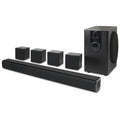
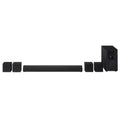
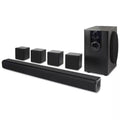
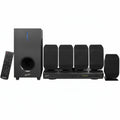
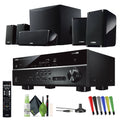
iLive 5.1 Surround Sound System →
- Open Settings → Bluetooth & devices
- Find your speaker
- Click the three dots next to it
- Select "Remove device"
- Restart Bluetooth
After removing the pairing, power off your speaker for 30 seconds, then power it back on and pair it fresh to establish a clean connection.
Fix Bluetooth Audio Lag on iPhone
To fix bluetooth audio lag on iPhone: Toggle Bluetooth off for 10 seconds, then back on. Go to Settings → Sound & Haptics and disable "Reduce Loud Sounds." Turn off audio descriptions in Settings → Accessibility → Audio/Visual. Use direct Bluetooth pairing instead of AirPlay. Close background apps before playing video.
Fix Bluetooth Audio Lag on Android
To fix bluetooth audio lag on Android: Go to Settings → About Phone, tap "Build Number" seven times to enable Developer Options, then select a lower-latency codec like SBC or aptX in Developer Options → Bluetooth Audio Codec. Disable spatial audio and surround sound in Settings → Sound. Test with the native Android media player instead of third-party apps.
Fix Bluetooth Audio Delay on Windows 11
Windows 11 computers often struggle with bluetooth audio delay on Windows 11 because of driver conflicts and audio enhancement settings that add processing overhead.
Start by updating your Bluetooth drivers:
- Right-click the Start menu and select Device Manager
- Expand "Bluetooth"
- Right-click your Bluetooth adapter
- Select "Update driver"
- Choose "Search automatically for updated driver software"
- Restart your computer after the update completes
Disable audio enhancements that introduce latency:
- Right-click the speaker icon in your system tray
- Select "Open Volume mixer"
- Find your Bluetooth speaker in the list
- Click the three dots next to it
- Select "App volume and device preferences"
- Look for any audio enhancement or spatial audio settings and disable them
In Windows Settings, adjust your Bluetooth connection priority:
- Go to Settings → Bluetooth & devices
- Find your speaker
- Click it to open device details
- Check for any power-saving or connection optimization settings
- Disable power-saving mode if available, as it can reduce connection stability
Disable exclusive audio mode, which can cause Windows to prioritize certain apps over others:
- Right-click your speaker in Device Manager
- Select Properties
- Go to the Advanced tab
- Uncheck "Allow applications to take exclusive control of this device"
Test with a different audio application. Windows Media Player sometimes handles Bluetooth timing better than streaming apps like Spotify.
Reduce Interference and Improve Connection Stability
Interference from other wireless devices is a major cause of sound delay on bluetooth speakers. Your Bluetooth speaker operates on the 2.4 GHz frequency, which is crowded with Wi-Fi routers, microwaves, cordless phones, and baby monitors.
Position your speaker strategically to minimize interference:
- Keep your speaker at least 10 feet away from your Wi-Fi router
- Move it away from microwaves, especially when they're in use
- Ensure clear line-of-sight between your speaker and source device
- Avoid placing the speaker inside cabinets or enclosed spaces
- Position it at roughly ear level for optimal signal strength
Check your Wi-Fi channel settings. If your router broadcasts on the same channel your Bluetooth is trying to use, they'll interfere with each other:
- Log into your router's admin panel
- Look for Wi-Fi channel settings
- Switch to channel 1, 6, or 11 (these don't overlap with standard Bluetooth frequencies)
- Restart your router and reconnect your speaker
Reduce the number of active Bluetooth connections. If your speaker is paired with multiple devices simultaneously, it may struggle to prioritize the active connection:
- Unpair your speaker from devices you're not currently using
- Keep it paired to only one or two primary devices
- This forces the speaker to focus its connection on active sources
Test your connection strength by moving closer to the speaker. If audio lag disappears when you're near the speaker but returns when you're across the room, interference or signal weakness is the problem.
Update Drivers, Firmware, and Software
Outdated drivers and firmware are common culprits behind persistent bluetooth audio delay. Manufacturers regularly release updates that improve connection stability and reduce latency.
Check for Bluetooth driver updates on your computer:
- Visit your device manufacturer's support website
- Search for your specific model
- Download the latest Bluetooth driver
- Install it and restart your computer
- Test your speaker connection after the update
Update your speaker's firmware if it supports wireless updates:
- Check your speaker's manual or manufacturer website for firmware versions
- Some speakers update automatically when connected to power and Wi-Fi
- Others require a dedicated mobile app to check for and install updates
- Firmware updates often include latency improvements and connection fixes
Update your phone or tablet's operating system:
- Go to Settings → About
- Check for system updates
- Install any available updates and restart your device
- OS updates frequently include Bluetooth performance improvements
Update your streaming apps and media players:
- Open your app store
- Check for pending updates for apps you use with your speaker
- Install updates for Spotify, Netflix, YouTube, or other audio apps
- Newer versions often include better Bluetooth handling
After updating any component, completely disconnect and re-pair your speaker to ensure it uses the latest connection protocols.
Fixing how to fix sound delay on bluetooth speakers usually comes down to one of these approaches: diagnosing the source, re-pairing your devices, adjusting device-specific settings, reducing interference, or updating software. Start with the diagnostic step to identify where the delay originates, then work through fixes specific to your device type. Most audio lag issues resolve within minutes using these methods. If you're building a home theater setup with wireless audio, the iLive 5.1 Surround Sound System from JoeMo Promo provides plug-and-play Bluetooth connectivity designed to minimize latency. Its straightforward pairing and stable connection make it an ideal choice for video playback and movie nights where sync matters. Shop the collection today and experience clutter-free wireless audio that actually works.
Frequently Asked Questions
Why is my Bluetooth speaker delayed when watching videos?
Bluetooth audio delay when watching videos often stems from the codec used by your speaker and source device. Standard Bluetooth codecs introduce 100-300 milliseconds of latency, which becomes noticeable during video playback when audio no longer syncs with lip movement. Interference from Wi-Fi networks, low battery levels, or distance between devices also trigger delay. Start by checking your speaker's battery, moving closer to your source device, and reducing nearby wireless interference before adjusting settings.
How can I fix Bluetooth audio lag on my iPhone?
For Bluetooth audio lag on iPhone, first forget the speaker in Settings > Bluetooth, wait 10 seconds, and re-pair it. Then disable Wi-Fi calling and Wi-Fi Assist temporarily to reduce competing wireless traffic. If delay persists, disable audio enhancements on your iPhone by going to Settings > Accessibility > Audio/Visual and toggling off any active enhancements. Ensure your iPhone has the latest iOS update, as Apple regularly releases patches that improve Bluetooth performance.
Can I reduce Bluetooth audio delay on an Android phone?
Yes. Disconnect and re-pair your Bluetooth speaker, then clear the Bluetooth cache by going to Settings > Apps > Show System Apps > Bluetooth, tap Storage > Clear Cache. In Settings > Sound & Vibration, disable audio enhancements or spatial audio if available. Move your phone closer to the speaker and away from Wi-Fi routers. If your Android phone has developer options enabled, check that Bluetooth audio codec is set to a low-latency option like aptX or LDAC if your speaker supports it.
What should I do if my Bluetooth speaker has delay on multiple devices?
If audio delay occurs across iPhone, Android, and Windows devices, the issue likely originates with the speaker itself. Reset the speaker to factory settings by holding the power button for 10-15 seconds, then re-pair it with one device. Check the manufacturer's website for firmware updates and install them. If delay persists after reset and firmware update, the speaker's Bluetooth chipset may be degraded. In that case, consider switching to a wired connection via a 3.5mm auxiliary cable or replacing the speaker with a model designed for low-latency wireless audio, such as the iLive 5.1 Surround Sound System with Bluetooth.